

How to create website buttons in Canva
This is the second part to my blog post on creating a website landing page for Instagram links. I use Squarespace but the same idea can be applied to any hosting platform.
There are two ways to create buttons:
This is the second part to my blog post on creating a website landing page for Instagram links. I use Squarespace but the same idea can be applied to any hosting platform.
There are two ways to create buttons:
You can create custom buttons in a program like Canva or Indesign.
You can use the button feature within the Squarespace website. I created custom buttons for my site. It's a little more work but I like how it looks.
HOW TO CREATE BUTTONS DIRECTLY ON SQUARESPACE
1. Click on 'page content edit' and click the tear drop shape that appears on the left margin. Click on the button content block.
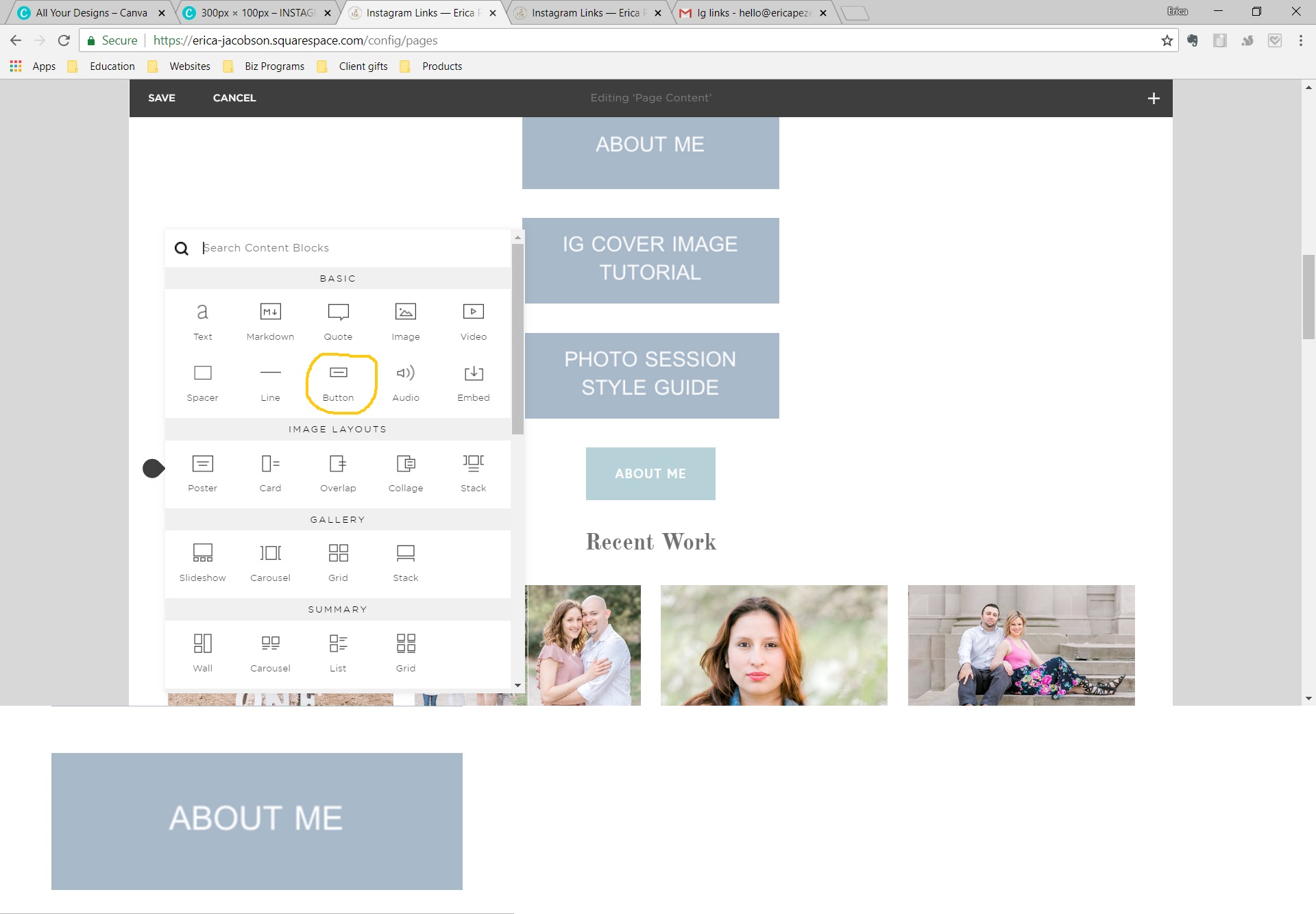
2. Rename the button to whatever you are linking to. You can link to content on your website or external links. Repeat this process for all the content you want to link on your landing page.
This is the easiest way to create a landing page and swap out content.

HOW TO CREATE BUTTONS IN CANVA
If you want to create custom buttons it's pretty easy to do in Canva. I chose custom dimensions of 300 x 100 px. Next select a background color and add your text. I chose the simple sans serif font 'GARUDA' for readability. Download all of your buttons and then go the landing page to upload them.

To add the custom buttons to your landing page just add them as an image and then link your content.

This is what my landing page looks like when someone clicks on my Instagram bio link:

I hope this was helpful! To see the full post on how I created an Instagram landing page on my website click here.

How to Make Cover Photos on Instagram Story Highlights
By now you've probably seen accounts with cover photos on their Instagram story highlights.
Instagram story highlights can be used as mini video channels to showcase helpful information for your followers. I have some FAQ's, an about me channel, wedding tips, and my favorite portfolio images.
With highlights new followers can learn about you quickly and it takes away some of the pressure to post daily.
By now you've probably seen accounts with cover photos on their Instagram story highlights.
Instagram story highlights can be used as mini video channels to showcase helpful information for your followers. I have some FAQ's, an about me channel, wedding tips, and my favorite portfolio images.
With highlights new followers can learn about you quickly and it takes away some of the pressure to post daily.
I created my images in Canva and you could also use Phonto, Photoshop, or any other platform that allows you to create graphics.
I created a Canva tutorial so you can make icon cover photos for your account!
1. In Canva go to the "Use custom dimensions" button on the top right. Enter 1080 x 1920 for the dimensions.


2. Next choose a background color for your image. You can choose any background you like but I prefer a solid color. You can choose from Canva's pre-selected colors or add you own custom color.

3. In the "search" bar enter the name of an icon you want to use. For instance, 'camera', 'house', 'leaf'.
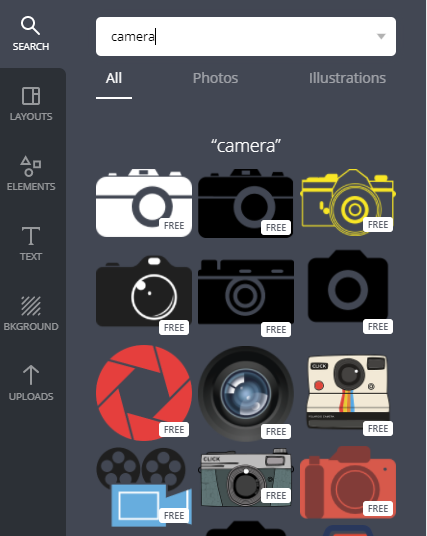
4. Choose an icon, I prefer simple outlines. I center the icon in the middle of the page and enlarge it to about 230 x 230. You can also change the color of the icon, I chose white for all mine.

5. Save your image. Now it's time to upload to Instagram stories. There are many ways to do this, I prefer to add to my scheduled stories using Planoly on my desktop. I then post to my stories using the Planoly app on my phone.
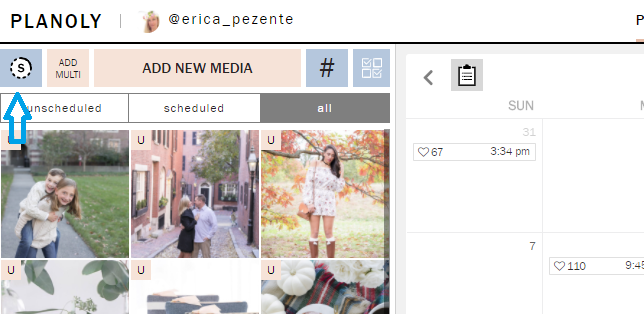
6. Once you've posted to your stories, go to your story and tap the 'highlight' icon

7. Tap 'new' to create a new highlight.

8. Name your highlight whatever you'd like.

9. The new highlight will appear on your feed!
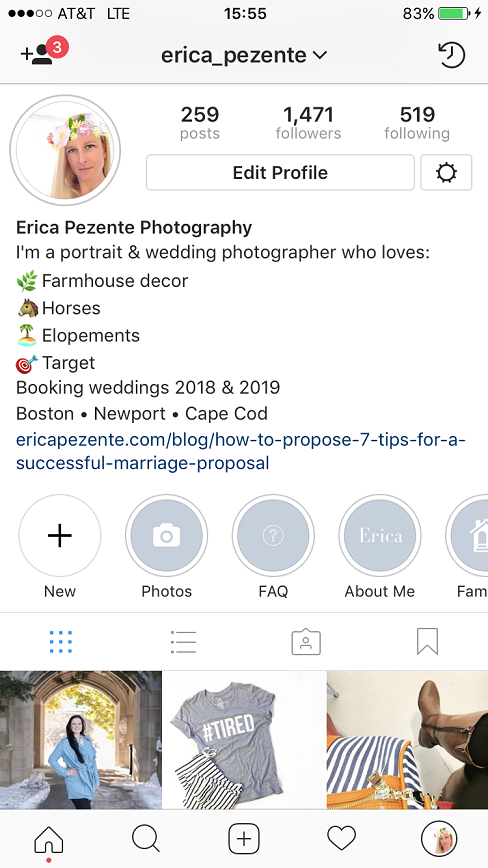
10. To change the cover image or adjust the placement go to the highlight and tap 'edit highlight'

11. Tap 'edit cover'

12. You can now change the cover image or recenter the placement of your icon.

13. To add to your highlighted story go into 'edit highlight' and simply tap any story you'd like to add to that section.

That's it for this tutorial! If you found it helpful let me know in the comments and if you make your own covers tag me in a story so I can see what you created @erica_pezente!
Search Posts
Categories
-
Couples
1
- Dec 11, 2018 Best of 2018 - Erica Pezente Photography Dec 11, 2018
-
Dogs
1
- Sep 6, 2023 Acton Arboretum Fall Dog Photos | Liza and Harkins Sep 6, 2023
-
Elopements
1
- Jul 16, 2021 Plymouth Beach Elopement Photos | Brett and Victoria Jul 16, 2021
-
Engagements
9
- May 2, 2022 Arnold Arboretum Boston, MA Cherry Blossom Spring Engagement Photos | Alexis and Dave May 2, 2022
- Apr 18, 2022 Old Stone Church West Boylston Engagement Photos | Adam and Becky Apr 18, 2022
- Sep 14, 2021 Beavertail Lighthouse Engagement Photos | Marcy and Anthony Sep 14, 2021
- Jun 16, 2021 Plum Island Newburyport Engagement Session | Alison and Dave Jun 16, 2021
- Jul 21, 2020 Scituate Lighthouse Engagement Photos | Tyler and Alexis Jul 21, 2020
- Nov 14, 2018 Wellesley College Fall Engagement Photos | Pooja and Nadja Nov 14, 2018
- Nov 8, 2018 Fan Pier Boston Engagement Photos | Darian & Chris Nov 8, 2018
- Dec 6, 2017 How to Propose: 7 tips for a Successful Marriage Proposal Dec 6, 2017
- Nov 2, 2017 Old Stone Church Engagement Photos | Megan & Gabe Nov 2, 2017
-
Family Photos
115
- Oct 15, 2025 Acton Arboretum Fall Family Photos | Colleen Oct 15, 2025
- Oct 1, 2025 Old Manse Concord Fall Family Photos | Nicole Oct 1, 2025
- Sep 24, 2025 Wayside Inn Fall Family Photos | Keya Sep 24, 2025
- Sep 18, 2025 Old Manse Concord Fall Family Photos | Christina Sep 18, 2025
- Sep 12, 2025 Wayside Inn Grist Mill Fall Family Photos | Yolanda Sep 12, 2025
- Aug 18, 2025 Duxbury Summer Family Photos | Katie and Hunter Aug 18, 2025
- Jul 23, 2025 Wayside Inn Sudbury Summer Family Photos | Teresa Jul 23, 2025
- Jul 10, 2025 Wayside Inn Grist Mill Fall Family Photos | Angela Jul 10, 2025
- Jul 8, 2025 Broad Hill Lavender Farm Holliston Family Photos | Jeannie Jul 8, 2025
- May 6, 2025 Wayside Inn Grist Mill Fall Family Photos | Melissa May 6, 2025
- Apr 29, 2025 Acton Arboretum Fall Family Photos | Candice Apr 29, 2025
- Apr 22, 2025 Acton Arboretum Fall Family Photos | Jenna Apr 22, 2025
- Apr 19, 2025 Acton Arboretum Fall Family Photos | Nicole Apr 19, 2025
- Feb 13, 2025 Wellesley College Fall Family Photos | Catherine Feb 13, 2025
- Feb 6, 2025 Old Manse Concord Fall Family Photos | Courtney Feb 6, 2025
- Jan 30, 2025 Wayside Inn Grist Mill Summer Family Photos | Kelly Jan 30, 2025
- Jan 23, 2025 Family Photos at Acton Arboretum | Donna Jan 23, 2025
- Jan 16, 2025 2023 Christmas Tree Farm Minis at Highfields Tree Farm Grafton, MA Jan 16, 2025
- Dec 31, 2024 Old North Bridge Fall Family Photos | Jessica Dec 31, 2024
- Dec 4, 2024 2024 Photography Recap - Sharing my Favorite Memories Dec 4, 2024
- Sep 16, 2024 Family Photos at Wingaersheek Beach, Gloucester Sep 16, 2024
- Jul 10, 2024 South Yarmouth Summer Family Beach Photos | Liz Jul 10, 2024
- Jun 26, 2024 Scituate Lighthouse Summer Family Photos | Yasmine Jun 26, 2024
- Nov 17, 2023 Old North Bridge Concord Fall Family Photos | Nicole Nov 17, 2023
- Nov 16, 2023 Old North Bridge Concord Fall Family Photos | Leanne Nov 16, 2023
- Nov 15, 2023 Old North Bridge Concord Fall Family Photos | Colleen Nov 15, 2023
- Nov 14, 2023 Old North Bridge Fall Family Photos | Meredith Nov 14, 2023
- Nov 13, 2023 Morton Park Wellesley Fall Family Photos | Elissa Nov 13, 2023
- Nov 7, 2023 Christmas Tree Farm Minis | Highfields Tree Farm Grafton, MA Nov 7, 2023
- Nov 6, 2023 Hanson's Farm Pumpkin Patch Fall Family Photos | Nicole Nov 6, 2023
- Oct 30, 2023 Hanson's Farm Pumpkin Patch Fall Family Photos | Kate Oct 30, 2023
- Oct 10, 2023 Wayside Inn Grist Mill Fall Family Photos | Christine Oct 10, 2023
- Sep 27, 2023 Acton Arboretum Fall Family Photos | Kassi Sep 27, 2023
- Sep 11, 2023 Acton Arboretum Fall Family Photos | Leanne Sep 11, 2023
- Sep 1, 2023 Acton Arboretum Fall Family Photos | Jessica Sep 1, 2023
- Aug 31, 2023 Acton Arboretum Fall Family Photos | Jaime Aug 31, 2023
- Aug 25, 2023 Acorn Street Boston Summer Family Photos | Jenny Aug 25, 2023
- Aug 24, 2023 Northborough Field Summer Photos | Diana Aug 24, 2023
- Aug 23, 2023 Acton Arboretum Summer Family Photos | Lisa Aug 23, 2023
- Aug 21, 2023 Lavender Farm Family Photos - Broad Hill Lavender Farm Holliston, MA | Mary Aug 21, 2023
- Aug 17, 2023 Lavender Farm Mini Sessions | Broad Hill Lavender Farm | Yasmine Aug 17, 2023
- Jan 4, 2023 Harvard University Graduation Photos | Prince Jan 4, 2023
- Jul 5, 2022 Larz Anderson Park Brookline Spring Family Photos | Gina Jul 5, 2022
- Jun 13, 2022 Cushing Park Framingham, MA Spring Family Photos | The Robertsons Jun 13, 2022
- Apr 22, 2022 Boston Public Garden and Beacon Hill Family Photos | Sara Apr 22, 2022
- Apr 10, 2022 Highfields Farm Christmas Tree Minis | Grafton, MA Apr 10, 2022
- Nov 29, 2021 Wayside Inn Grist Mill Sudbury, MA Fall Family Photos | Kim Nov 29, 2021
- Nov 19, 2021 Acton Arboretum Fall Family Photos | Yuri Nov 19, 2021
- Nov 18, 2021 Wrentham Fall Family Lake Photo Session | Meredith Nov 18, 2021
- Oct 27, 2021 Acton Arboretum Fall Family Photos | Colleen Oct 27, 2021
- Oct 26, 2021 Acton Arboretum Fall Family Photos | Michaela Oct 26, 2021
- Oct 25, 2021 Acton Arboretum Fall Family Photos | Alexa Oct 25, 2021
- Oct 22, 2021 deCordova Sculpture Park Lincoln, MA Fall Family Photos | Lindsay Oct 22, 2021
- Oct 15, 2021 Morton Park Wellesley, MA Fall Family Photos | Elissa Oct 15, 2021
- Oct 8, 2021 Wayside Inn Grist Mill Fall Family Photos | Erin Oct 8, 2021
- Oct 7, 2021 Hospital Hill Medfield Fall Family Photos | Jeff Oct 7, 2021
- Sep 23, 2021 Rhode Island Summer Beach Family Photos | Meghan Sep 23, 2021
- Sep 6, 2021 Hull family photos Sep 6, 2021
- Sep 6, 2021 Boston Seaport Fan Pier Park Summer Family Photos | Yasmin Sep 6, 2021
- Jul 19, 2021 Kingston, MA Summer Beach Family Photos Jul 19, 2021
- Jul 15, 2021 Boston Public Garden Summer Family Photos | Hilla Jul 15, 2021
- Jun 10, 2021 Wrentham, MA Summer Family Photos | Andrea Jun 10, 2021
- Apr 27, 2021 Framingham Spring family Photos | Katherine Apr 27, 2021
- Nov 23, 2020 Sudbury Grist Mill Fall Family Photos | Liz Nov 23, 2020
- Oct 28, 2020 Arnold Arboretum Fall Family Photos | Liz Oct 28, 2020
- Oct 8, 2020 Natick First Birthday Cake Smash and Family Photos | Jackie Oct 8, 2020
- Oct 7, 2020 Central Massachusetts Fall Family Photo Session | Melissa Oct 7, 2020
- Apr 5, 2020 Wellesley College Fall Family Photos | The Souza Family Apr 5, 2020
- Mar 22, 2020 Sudbury Home Fall Family Photos | Sabrina Mar 22, 2020
- Mar 6, 2020 Sudbury Grist Mill Fall Family Photos | Alicia Mar 6, 2020
- Mar 2, 2020 Wellesley College Fall Family Photos | The Schwartz Family Mar 2, 2020
- Feb 23, 2020 Sudbury Grist Mill Fall Family Photos | The Giampas Feb 23, 2020
- Feb 19, 2020 Larz Anderson Fall Family Photos | Emily Feb 19, 2020
- Nov 19, 2019 Sudbury Grist Mill Fall Family Photos | Alleen Nov 19, 2019
- Oct 14, 2019 Arnold Arboretum Fall Family Photos | Erin Oct 14, 2019
- Oct 13, 2019 Sudbury Grist Mill Fall Family Photos | Lindsay Oct 13, 2019
- Sep 27, 2019 Wellesley College Fall Family Photo Session | Meredith Sep 27, 2019
- Aug 30, 2019 Wellesley College Fall Family Photos | Laura T Aug 30, 2019
- Jul 17, 2019 Public Safety Photos at Goddard Park 2019 Jul 17, 2019
- May 28, 2019 Franklin Cranberry Bog Family Photos | Andrea May 28, 2019
- Mar 14, 2019 Boston Spring Family Photo Outfit Inspiration Mar 14, 2019
- Feb 2, 2019 Wellesley Fall Family Photos | Hulme Feb 2, 2019
- Jan 21, 2019 Wellesley Fall family Photos | Sara Jan 21, 2019
- Dec 11, 2018 Best of 2018 - Erica Pezente Photography Dec 11, 2018
- Nov 19, 2018 Wellesley Fall Family Photos | Giampas Nov 19, 2018
- Oct 29, 2018 Wellesley Fall Family Photos | Colleen Oct 29, 2018
- Oct 28, 2018 Wellesley Fall Family Photos | Heather Oct 28, 2018
- Oct 23, 2018 Wellesley Fall Family Photos | Leah Oct 23, 2018
- Oct 12, 2018 Wellesley Fall Family Photos | Jyllian Oct 12, 2018
- Oct 8, 2018 Sudbury Grist Mill Fall Family Photos | Ashley Oct 8, 2018
- Sep 3, 2018 Lynch Park Beverly Family Photos | Amy Sep 3, 2018
- Jul 18, 2018 Public Safety Photos 2018 | Goddard State Park RI Jul 18, 2018
- Jul 16, 2018 Public Safety Photos 2018 | Framingham, MA Jul 16, 2018
- Jun 14, 2018 Wellesley Family Photos | The Keating Family Jun 14, 2018
- May 20, 2018 Arnold Arboretum Family Photo Session | Michal May 20, 2018
- May 3, 2018 Wellesley Family Photos | The Giampa's May 3, 2018
- Dec 16, 2017 Riley's Christmas Photos Dec 16, 2017
- Nov 28, 2017 Couples Session on Acorn Street in Beacon Hill | Katie Nov 28, 2017
- Nov 20, 2017 Wellesley Fall Mini Session | Marisa Nov 20, 2017
- Nov 17, 2017 Wellesley Family Photos & Cake Smash | Jaclyn Nov 17, 2017
-
Horses
1
- May 15, 2020 Equine Photo Session Marlborough, MA | Leona May 15, 2020
-
Lifestyle
6
- May 22, 2019 Newport RI Birthday Trip 2019 May 22, 2019
- May 9, 2019 Wellesley College Spring Photo Session | Maria May 9, 2019
- Feb 25, 2019 Boston Branding Photography Session | Lizzy Colombo Feb 25, 2019
- Oct 2, 2018 Fall Family Photo Outfit Ideas Oct 2, 2018
- Oct 2, 2018 How to Use Style & Select to Plan Family Photo Outfits Oct 2, 2018
- Jan 18, 2017 Lifestyle shoot for Boston blogger, Mayliving, in Wellesley, MA Jan 18, 2017
-
Maternity
6
- Jun 20, 2022 Morses Pond Wellesley, MA Spring Maternity Photos | Kat Jun 20, 2022
- Jun 15, 2022 Northborough Spring Maternity Photos | Diana Jun 15, 2022
- Jul 5, 2020 Sudbury Grist Mill Maternity Photos | Adam and Leane Jul 5, 2020
- May 16, 2018 Cushing Park Framingham Maternity Session May 16, 2018
- Feb 19, 2018 Pregnancy Announcement Photos at UCONN | Steph & Nick Feb 19, 2018
- May 6, 2017 Andrea and Frank's Maternity Photos May 6, 2017
-
Senior photos
4
- Jul 6, 2022 Boston School of Public Health Graduation Photos | Mansi and Jeet Jul 6, 2022
- Apr 27, 2022 Plum Island Newburyport Senior Session | Mara Apr 27, 2022
- Oct 5, 2021 Cushing Park Senior Photos Framingham, MA | Mahalia Oct 5, 2021
- Oct 11, 2020 Framingham State University Graduation Photos | Maria Oct 11, 2020
-
Weddings
13
- Sep 29, 2021 Independence Harbor Assonet, MA Fall Wedding | Emily and Steven Sep 29, 2021
- Jul 27, 2021 Atkinson Country Club NH Summer Wedding | Daniella and Michael Jul 27, 2021
- Jul 26, 2021 Wedding Party Photos in Congolese Dress | Daniella and Michael Jul 26, 2021
- Aug 12, 2020 Cedar Hill Retreat Center Duxbury Wedding Ceremony | Ryan and Sara Aug 12, 2020
- Aug 7, 2020 Arnold Arboretum Wedding Photos | Michael and Daniella Aug 7, 2020
- Jan 23, 2019 Should You Have a First Look? Jan 23, 2019
- Jan 16, 2019 How to Choose a Wedding Photographer Jan 16, 2019
- Jan 15, 2019 Boston Fan Pier and Fanueil Hall Elopement | Christine and Kyle Jan 15, 2019
- Dec 31, 2018 I Just Got Engaged, Now What? Dec 31, 2018
- Dec 27, 2018 Wellesley College Fall Wedding | Anna and Maisom Dec 27, 2018
- Dec 11, 2018 Best of 2018 - Erica Pezente Photography Dec 11, 2018
- Nov 6, 2018 Pleasant Valley Country Club Wedding | Megan & Gabe Nov 6, 2018
- Apr 25, 2018 Boston Public Garden Elopement | Sean & Lynsey Apr 25, 2018


